oracle 1Z0-1054-25 Exam Questions
Questions for the 1Z0-1054-25 were updated on : Feb 18 ,2026
Page 1 out of 9. Viewing questions 1-15 out of 123
Question 1
SIMULATION
Task 3
Manage Chart of Accounts Mappings
Scenario
Your client needs to consolidate their UK Ledger to the Canadian parent ledger. Each Chart of
Accounts
has the following segments:
Company-LoB-Account-Cost Center-Product-Intercompany
Know that the Company, LoB, Product, and Intercompany segments share the same value sets.
Create a Chart of Accounts mappings to map UK Chart of Accounts to CA Chart of Accounts that
meets the following specifications:
Cost Center Mapping
. Balance Sheet (0 and 000) should be mapped to
Balance Sheet
. All other cost centers should be mapped to 610
Account Mapping
. Asset accounts (in the 1000 range) should be
mapped to account 11101
. Liability accounts (in the 2000 range) should be
mapped to account 22100
. Equity accounts (in the 3000 range) should be
mapped to account 34000
. Revenue accounts (in the 4000 range) should be
mapped to account 42000
. Expense accounts (from 5000 onwards) should be
mapped to account 51100
Note:
· Do not use conditions based on parents.
. Treat any account after the 5000 range as an expense.
· Ensure all maps are numeric only.
· When creating your mapping rules for each segment
please allow for existing and future segment values
Answer:
See the
Explanation for the
complete Solution.
Explanation:
Here are the steps you need to follow:
In the Setup and Maintenance work area, go to the following:
Offering: Financials
Functional Area: Financial Reporting Structures
Task: Manage Chart of Accounts Mapping
Select the source chart of accounts (UK) and the target chart of accounts (CA) that you want to map.
Click on the Segment Rules tab to define the segment mapping rules. Enter the following information
for each segment:
Segment Number: 1
Segment Name: Company
Mapping Type: Value
Source Value: *
Target Value: *
Segment Number: 2
Segment Name: LoB
Mapping Type: Value
Source Value: *
Target Value: *
Segment Number: 3
Segment Name: Account
Mapping Type: Range
Source From Value: 1000
Source To Value: 1999
Target Value: 11101
Mapping Type: Range
Source From Value: 2000
Source To Value: 2999
Target Value: 22100
Mapping Type: Range
Source From Value: 3000
Source To Value: 3999
Target Value: 34000
Mapping Type: Range
Source From Value: 4000
Source To Value: 4999
Target Value: 42000
Mapping Type: Range
Source From Value: 5000
Source To Value: 99999999
Target Value: 51100
Segment Number: 4
Segment Name: Cost Center
Mapping Type: Value
Source Value: 0
Target Value: Balance Sheet
Mapping Type: Value
Source Value: 000
Target Value: Balance Sheet
Mapping Type: Value
Source Value: *
Target Value: 610
Segment Number: 5
Segment Name: Product
Mapping Type: Value
Source Value: *
Target Value: *
Segment Number: 6
Segment Name: Intercompany
Mapping Type: Value
Source Value: *
Target Value: *
Click on the Save and Close button to save the segment mapping rules.
You have successfully created a Chart of Accounts mapping for the given scenario. For more
information, you can refer to the following resources:
Overview of the Chart of Accounts Mapping Page
Chart of Accounts Structures and Instances
How To Create A Chart Of Accounts Mapping For A Secondary Ledger
How To Bulk Upload The Mapping Rules In “Manage Chart of Accounts Mapping”
Centralized Management of Chart of Accounts Configurations
Question 2
SIMULATION
Challenge 2
Manage Shorthand Aliases
Scenario
Your client intends to utilize the Shorthand Alias feature and would like to see how the aliases will
appear when entering transactions.
Task 2
Create a shorthand alias for the US Chart of Accounts to record Revenue Domestic for Supremo
Fitness, Line of Business 2, and US Operations Cost Center.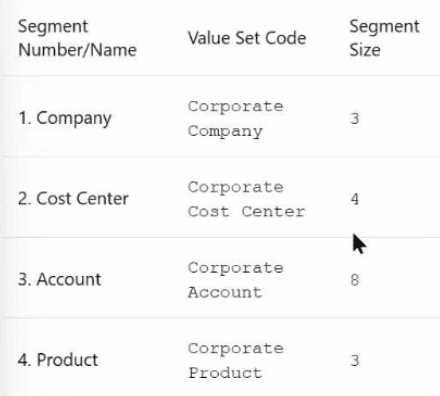
Note:
. Prefix your alias name with 07, where 07 is
your exam ID.
. There is no Product or Intercompany
impact.
Answer:
See the
Explanation for the
complete Solution.
Explanation:
Here are the steps you need to follow:
In the Setup and Maintenance work area, go to the following:
Offering: Financials
Functional Area: Financial Reporting Structures
Task: Manage Shorthand Aliases
Select the chart of accounts that you want to create the alias for. In this case, it is the Corporate chart
of accounts.
Click on the Add Row icon to create a new alias. Enter the following information:
Alias Name: RevDom
Account Template: 101-2000-400000-000-000-000
Description: Revenue Domestic for Supremo Fitness, Line of Business 2, and US Operations Cost
Center
Enabled: Yes
Start Date: Today’s date
End Date: Blank
Click on the Save and Close button to save the alias.
You have successfully created a shorthand alias for the US Chart of Accounts. For more information,
you can refer to the following resources:
Account Aliases
Enter a GL Account Alias
Short Hand Alias in Fusion Financials Key Flexfield
How to Enable Account Shorthand Aliases
Question 3
SIMULATION
Manage Chart of Accounts Structure and Instance
Scenario
Your client is implementing Oracle Fusion Cloud Financials. The decision is to have a 5-segment Chart
of Accounts: Company, Cost Center, Account, Product, and Intercompany. You are working in
the General Ledger team and will be responsible for creating the Chart of Accounts Structure and
Instance for the Chart of Accounts.
Task 1
Create a Chart of Accounts Structure and Instance for the following Chart of Accounts: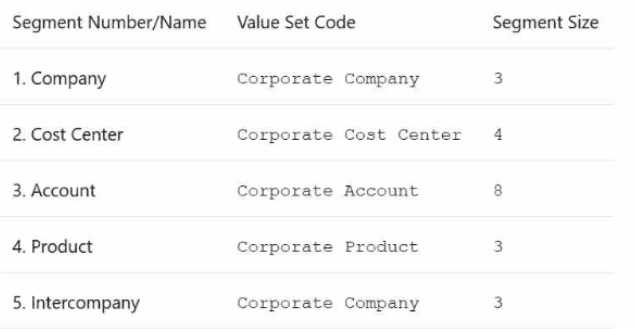
Note:
· Prefix all your setups with 07, where 07 is your candidate ID
· There is one balancing segment.
· Choose the appropriate segment labels.
. For the purpose of this test there is no need to deploy the flexfield.
. Valid code combinations should be added to the Code Combination table automatically.
· Shorthand aliases will not be implemented.
. Accept the defaults for the instance segments.
Answer:
See the
Explanation for the
complete Solution.
Explanation:
Here are the steps you need to follow:
Navigate to the Setup and Maintenance work area and search for the task Manage Chart of Accounts
Structures.
Click on the Create icon to create a new Chart of Accounts Structure. Enter the following information:
Structure Code: 07COA
Structure Name: 07 Chart of Accounts
Description: Chart of Accounts for candidate 07
Number of Segments: 5
Click on the Next button to define the segments. Enter the following information for each segment:
Segment Number: 1
Segment Name: Company
Value Set Code: 07Corporate Company
Value Set Name: 07 Corporate Company
Maximum Size: 3
Balancing: Yes
Segment Label: Company
Segment Number: 2
Segment Name: Cost Center
Value Set Code: 07Corporate Cost Center
Value Set Name: 07 Corporate Cost Center
Maximum Size: 4
Balancing: No
Segment Label: Cost Center
Segment Number: 3
Segment Name: Account
Value Set Code: 07Corporate Account
Value Set Name: 07 Corporate Account
Maximum Size: 8
Balancing: No
Segment Label: Natural Account
Segment Number: 4
Segment Name: Product
Value Set Code: 07Corporate Product
Value Set Name: 07 Corporate Product
Maximum Size: 3
Balancing: No
Segment Label: Product
Segment Number: 5
Segment Name: Intercompany
Value Set Code: 07Corporate Company
Value Set Name: 07 Corporate Company
Maximum Size: 3
Balancing: No
Segment Label: Intercompany
Click on the Next button to review the summary and click on the Save and Close button to save the
Chart of Accounts Structure.
Navigate to the Setup and Maintenance work area and search for the task Manage Chart of Accounts
Structure Instances.
Click on the Create icon to create a new Chart of Accounts Structure Instance. Enter the following
information:
Structure Code: 07COA
Structure Name: 07 Chart of Accounts
Description: Chart of Accounts for candidate 07
Chart of Accounts Structure: 07COA
Enabled: Yes
Allow Dynamic Inserts: Yes
Click on the Next button to review the summary and click on the Save and Close button to save the
Chart of Accounts Structure Instance.
You have successfully created a Chart of Accounts Structure and Instance for the given scenario. For
more information, you can refer to the following resources:
Chart of Accounts Structures and Instances
Chart of Accounts Components
Minimum Steps For Financial Enterprise Structures Configuration
Overview of Creating and Configuring Chart of Accounts Structure and Instances
Question 4
Which two are predefined roles in General Ledger?
- A. General Accountant
- B. General Accounting Clerk
- C. General Accounting Supervisor
- D. General Accounting Manager
Answer:
A,D
Explanation:
Topic 2, Hands-on Performance Based
Question 5
An Oracle Fusion Cloud customer operating in the financial services sector requires only a subset of
the legal entities data captured in the primary ledgers to be transferred to the secondary ledgers.
Which journal data conversion level should be selected between the primary and secondary ledgers
to achieve this?
- A. Adjustment only
- B. Journal
- C. Balance
Answer:
A
Question 6
Your new accountants have been making mistakes in reconciling accounts assigned to them. Your
account balances have either spiked or dropped 30–40% every period due to human error. This
causes delays in reconciliation.
Which feature can be used to proactively notify you of account anomalies in a more timely manner?
- A. Financial reports with embedded charts
- B. Smart View
- C. Account Inspector and its charts
- D. Account Monitor
Answer:
D
Question 7
In a primary ledger, under the System options, in the Close section, the "Prevent General Ledger
Period Closure When Open Subledger Periods Exist" option has been selected.
For which subledger can you opt out of the Period Close Checking feature by using the
ORA_GL_INCLD_STRICT_PRD_CLOSE lookup?
- A. Accounts Payable
- B. Order Management
- C. Lease Accounting
Answer:
A
Question 8
You have exported data from your budgeting application into a .csv file.
What should you use to load that data into General Ledger?
- A. File-based data import
- B. Application Developer Framework desktop integrator
- C. Budget journal spreadsheet
- D. Enterprise Resource Budget Integrator
Answer:
A
Question 9
After user acceptance testing of the new Oracle Fusion Cloud system, the company's accountants
report that they want to be notified of anomalies in certain account balances in real time. The
anomalies should include an increase or decrease that is above or below a percentage amount
threshold.
What is the best way to meet this requirement?
- A. Use Account Inspector.
- B. Perform an account analysis online.
- C. Create an Account Group using Account Monitor.
- D. Open a Smart View file saved on your desktop.
Answer:
C
Question 10
You want to create an Ad Hoc Analysis in Smart View; you enter the following dimensions for the
report and click Refresh in the POV.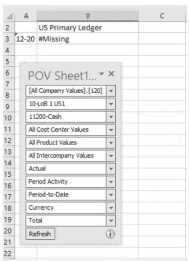
You get #Missing instead of a balance. What value did you not specify, which resulted in this?
- A. Cost Center
- B. Intercompany
- C. Product
- D. A particular currency
Answer:
D
Question 11
Which three Oracle Transactional Business Intelligence (OTBI) objects can be created by using the
tools in the Oracle Business Intelligence (BI) catalog?
- A. Reports
- B. Infotiles
- C. Analyses
- D. Infolets
- E. Dashboards
Answer:
A,C,E
Question 12
You are defining an income statement report using Financial Reporting Web Studio. Users of the
report need to be able to analyze the balances directly from the report.
What should you enable to allow this?
- A. Allow Expansion in Report Functions
- B. Drill Down in Report Functions
- C. Drill Through in Grid Properties
Answer:
C
Question 13
The intercompany accountants on the cloud project are trying to reconcile intercompany balances
using the latest intercompany reconciliation report.
However, they have some concerns about the information presented in the report and want you to
clarify the content in the standard reconciliation report.
What is included in the intercompany reconciliation report?
- A. It displays ledger balancing lines generated when the primary balancing segment (BSV) is in balance but not the second or third BSVs.
- B. It displays all clearing company balances for the period.
- C. It displays the intercompany receivables and intercompany payables lines generated for the provider and receiver of each intercompany transaction.
Answer:
C
Question 14
You need to have invoices generated for certain intercompany transactions.
Where do you enable invoicing?
- A. Manage Intercompany Receivables Assignment
- B. Manage Intercompany System Options
- C. Manage Intercompany Transaction Types
- D. Manage Intercompany Organizations
Answer:
C
Question 15
You define intercompany balancing rules that are applied to a specific source and category, such as
Payables and Invoices, or a specific intercompany transaction type, such as Intercompany Sales.
Which statement on intercompany configuration is true?
- A. You can create a rule for all sources and categories by selecting the source "Other" and category "Other"
- B. Intercompany balancing evaluates the rules in the following order: ledger, legal entity, chart of accounts, and primary balancing segment value.
- C. You must define intercompany balancing rules for all sources, categories, and transaction types.
Answer:
A