Adobe AD0-E906 Exam Questions
Questions for the AD0-E906 were updated on : Mar 07 ,2026
Page 1 out of 4. Viewing questions 1-15 out of 55
Question 1
An implementation consultant wants to configure the enhanced connector inside a customer's
Adobe Experience Manager environment. The customer needs the following functionality, automatic
creation of project linked folders, comments syncing, and the automatic publishing of assets. How
should the consultant navigate to the enhanced connector configuration screens?
- A. Tools > Workfront Tools> Workfront Tools Configuration, select the configuration, and select Properties in the action bar
- B. Tools > Cloud Services > Workfront Toots Configuration, select the configuration, and select Properties in the action bar.
- C. Tools > Asset> Workfront Tools Configuration, select the configuration, and select Properties in the action bar.
Answer:
A
Explanation:
To configure the Enhanced Connector in AEM, including features like automatic project-linked folder
creation, comment syncing, and automatic publishing of assets, you should navigate to:
Tools > Workfront Tools > Workfront Tools Configuration: This is where you can access and configure
the connector settings within AEM. From there, selecting the configuration and choosing Properties
in the action bar allows you to adjust the required settings.
Options B and C reference incorrect paths (Cloud Services and Assets), which are not used for the
Enhanced Connector configuration.
Refer to AEM’s Enhanced Connector documentation for step-by-step instructions on accessing and
configuring the connector.
Question 2
While reviewing the customer's configuration, the consultant lists the following paths as existing
within the customer's Experience Manager repository:
/Apps/dam/gui/content/foldermetadatasschemaeditor
/Apps/dam/gui/content/folderscheduleconfiguration
/Apps/dam/gui/content/folderschemaconfigproperties
Which path must be deleted prior to the installation of the Enhanced Connector?
- A. /Apps/dam/gui/content/foldermetadatasschemaeditor
- B. /Apps/dam/gui/content/folderscheduleconfiguration
- C. /Apps/dam/gui/content/folderschemaconfigproperties
Answer:
A
Explanation:
Before installing the Enhanced Connector, the path
/Apps/dam/gui/content/foldermetadatasschemaeditor should be deleted to avoid conflicts with the
new configuration. This path relates to the older folder metadata schema editor, which can interfere
with the Enhanced Connector setup.
Paths related to folder scheduling (folderscheduleconfiguration) and configuration properties
(folderschemaconfigproperties) are not related to the Enhanced Connector and do not need to be
removed.
Refer to the Enhanced Connector installation guide for specific details on preparing the AEM
repository for the connector.
Question 3
An implementation consultant is preparing to configure the enhanced connector between AEM and
Workfront. As part of this, the consultant needs to make sure the firewall is properly configured.
Which two critical processes utilized by the enhanced connector does this allow? (Choose two.)
- A. Experience Manager Workflows
- B. Single sign-on (SSD)
- C. Evert Subscriptions
- D. Webhooks
Answer:
C, D
Explanation:
To ensure proper functioning of the Enhanced Connector between AEM and Workfront, it is critical
that the firewall allows traffic for Event Subscriptions and Webhooks:
Event Subscriptions: These are necessary for synchronizing events between Workfront and AEM,
such as when assets are modified or when metadata is updated.
Webhooks: Webhooks enable real-time data exchange and notifications between the two systems,
allowing instant updates to flow between Workfront and AEM.
Option A (Experience Manager Workflows) is relevant within AEM but not directly tied to firewall
configuration for the connector. Option B (Single Sign-On) is a security feature but not specifically
tied to the Enhanced Connector’s data synchronization processes.
Refer to the Workfront Enhanced Connector documentation for details on the processes that rely on
Event Subscriptions and Webhooks.
Question 4
During the configuration of the Enhanced Connector the consultant is working to make sure that the
required packages are added to the pom.xmi of all subprojects. Which section should the packages
be added to?
- A. Tools
- B. Embedded
- C. Servers
Answer:
B
Explanation:
When adding the required packages for the Enhanced Connector in AEM, they should be added to
the Embedded section of the pom.xml for all subprojects. The Embedded section is used to define
dependencies that need to be bundled with the AEM project, ensuring that the connector's
functionality is included in the deployment.
Option A (Tools) is incorrect because this section is used for development tools, not dependencies.
Option C (Servers) refers to server configurations, which is unrelated to package embedding.
Refer to AEM Maven project documentation for more details on embedding packages in the pom.xml
file.
Question 5
On the dispatcher, the consultant is reviewing what HTTP request methods to allow to
/bin/workfront-tools. The following methods are available: GET, HEAD, POST, PUT, and DELETE.
Which requests should be allowed?
- A. DELETE POST and GET
- B. HEAD. PUT. and DELETE
- C. GET, POST, and PUT
Answer:
C
Explanation:
When configuring allowed HTTP request methods for /bin/workfront-tools on the AEM dispatcher,
the safest and most appropriate methods to allow are GET, POST, and PUT. These methods cover the
basic operations for retrieving data (GET), submitting data (POST), and updating data (PUT), which
are typically required for the Enhanced Connector functionality.
GET: Used to retrieve data from the server.
POST: Used to send data to the server.
PUT: Used to update resources on the server.
Options A (DELETE) and B (HEAD, DELETE) are riskier and less commonly needed for this use case,
and DELETE should be restricted unless absolutely necessary to prevent unintended deletions.
Refer to Adobe documentation on Dispatcher security for best practices regarding allowed HTTP
methods.
Question 6
As part of the configuration of the Enhanced Connector configuration, an Experience Manager user
Group needs to be created for all users of workfront who use the enhanced connector.
How are the Workfront users added to this group?
- A. Using the import People option in Workfront
- B. Automatically via the Enhanced Connector
- C. From the Adobe Admin Console
Answer:
B
Explanation:
When configuring the Workfront Enhanced Connector in AEM, Workfront users who will use the
connector are automatically added to a corresponding AEM user group via the connector. This
automatic process ensures that permissions and group assignments are correctly synced between
Workfront and AEM without manual intervention.
Option A (using the Import People option in Workfront) refers to importing users into Workfront, not
syncing users to AEM. Option C (from the Adobe Admin Console) is related to managing users in the
Adobe platform but not specifically for the Enhanced Connector.
Refer to AEM and Workfront Enhanced Connector documentation for more information on user
synchronization and group management.
Question 7
A solutions consultant needs to configure the enhanced connector for a customer. The customer has
asked the solutions consultant to make sure that changes to metadata in Experience Manager will be
synced back to Workfront on linked Workfront documents. Two of the fields that the customer wants
synced are Content Type and Effort They are defined in workfront and Experience Manager as the
following:
Document custom form fields in Workfront: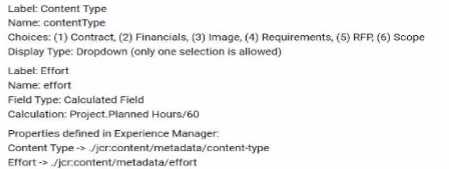
To accomplish this work, the solutions consultant configures a workflow model. The workflow model
has a single step, Workfront-Map Property’.
What Property Assignments will make sure changes in Experience Manager are reflected in
Workfront?
A)
B)
C)
- A. Option A
- B. Option B
- C. Option C
Answer:
A
Explanation:
To ensure that changes in metadata in Adobe Experience Manager (AEM) are synced back to
Workfront for the fields Content Type and Effort, the correct property assignment should map the
Workfront custom form fields to the corresponding paths in the AEM JCR repository.
In Option A:
CUSTOM FORMS
is mapped to /jcr:content/metadata/content-type
CUSTOM FORMS
is mapped to /jcr:content/metadata/effort
This configuration ensures that changes made in AEM’s content-type and effort metadata properties
will be reflected in the respective custom fields in Workfront.
Options B and C use incorrect prefixes (e.g., "DE:") and would not map the properties correctly for
synchronization between Workfront and AEM.
Refer to the Workfront Enhanced Connector documentation for detailed instructions on configuring
metadata synchronization between AEM and Workfront.
Question 8
An implementation consultant wants to configure the enhanced connector inside a customer's
Adobe experience Manager environment. The customer has expressed interest in automatically
publishing assets when they ore sent from Adobe Workfront to Adobe Experience Manager. The
customer does no! have an instance of Brand Portal running.
The customer has a project custom form field with the following details: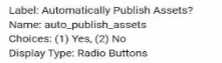
The customer wants this automatic publishing to be conditional on the value of the project custom
form field being equal to, Yes.
Which option should be used to implement this feature?
- A. Check the option, 'Automatically publish assets when sent from Workfront’ In the advanced tab of the configuration properties. In the Custom from field dropdown select. "CUSTOM FORM auto_publiah_asset’, and in the Custom from field value text box. write ’’Yes".
- B. Check the option. 'Automatically publish assets when sent from Workflow’ in the advanced tab of the configuration properties in the Custom form field dropdown select. "CUSTOM FORMS Automatically Publish Assets'', and in the Custom form field value lent box, write 'Yes’’.
- C. Check the option, 'Publish all prefect assets to Brand Portal upon project completion.' In the advanced tab of the configuration properties in the Custom form field dropdown select. 'CUSTOM FORMS auto_publish_assets', and in the Custom form field value text box. write "Yes".
Answer:
A
Explanation:
To implement conditional automatic publishing of assets from Workfront to AEM based on the value
of the custom form field, you should:
Check the option "Automatically publish assets when sent from Workfront": This ensures that the
assets will be automatically published to AEM when they are sent from Workfront.
Use the custom form field ("auto_publish_assets"): The system needs to check the value of this
custom form field, and if it is set to "Yes", the assets will be automatically published.
Set the Custom Form Field Value to "Yes": In the configuration, you’ll specify that automatic
publishing only occurs when the field value is "Yes."
Option B incorrectly refers to "Workflow" instead of "Workfront," and Option C refers to publishing to
Brand Portal, which is irrelevant since the customer does not have Brand Portal.
Refer to Workfront for AEM Enhanced Connector documentation for step-by-step guidance on
configuring conditional automatic asset publishing.
Question 9
A solutions consultant is configuring the Workfront for Experience Manager enhanced connector for
a customer the customer needs to be able to version files inside of Adobe Experience Manager when
uploading new versions inside of Adobe workfront. The solutions consultant has ensured the option
to 'Store assets with the same name as versions of the existing asset' has been checked in the
Advanced tab of the enhanced connector configuration.
Which two criteria ore required to make sure the file is versioned correctly in Experience Manager?
(Choose two.)
- A. The new version must have the same name as the current version
- B. The new version mud have a version number appended to the file name (!.e., asset name-1.pdf).
- C. The new version must have the same metadata compared to the current version
- D. The new version must be sent from Workfront to the same location as the current version.
Answer:
A, D
Explanation:
When configuring the Workfront for Experience Manager Enhanced Connector to version files
correctly in AEM, the following criteria must be met:
Same Name: The new version of the file must have the exact same name as the current version. This
ensures that AEM recognizes the file as a new version of an existing asset rather than a completely
new asset.
Same Location: The new version must be sent to the same location in AEM as the current version. If
the file is uploaded to a different location, AEM will not recognize it as a version of the existing asset.
Option B (appending version numbers) is not required for versioning in AEM, as versioning is handled
internally based on the file’s name and location. Option C (same metadata) is not necessary for
versioning but could be relevant for other workflows or metadata synchronization.
Refer to AEM Enhanced Connector documentation for detailed instructions on configuring versioning
and asset management between Workfront and AEM.
Question 10
An implementation consultant is configuring the enhanced connector Project Linked holders feature
for a customer. The customer wants the linked folder structure to be defined using the workfront
Portfolio name. Workfront Program name. Workfront Project name, and the project type. The project
type is a project custom form field defined by the following:
What Linked Folder Structure defines this correctly?
- A. Portfolio,Program,Name.DE:projectType
- B. Portfolio,Program,Name,projectType
- C. Portfolio,Program,project,Program, project Type
Answer:
B
Explanation:
In this case, the customer wants to define the linked folder structure based on the Workfront
Portfolio name, Program name, Project name, and Project Type. The Project Type is a custom form
field with specific choices like "Campaign," "Product Launch," etc.
The correct format to define the folder structure in AEM based on these elements would be:
Portfolio, Program, Name, projectType: This structure will create a hierarchical folder system in AEM
where the folders are nested by Portfolio, Program, Project Name, and Project Type (which is pulled
from the custom form field).
Option A includes an incorrect syntax with "DE
," which is not necessary, and Option C repeats the "Program" and misorders the fields.
Refer to Workfront Enhanced Connector documentation for further guidance on defining folder
structures using custom form fields.
Question 11
An implementation consultant needs to configure metadata mapping between Adobe Workfront
custom form fields and Adobe Experience Manager metadata properties. Which Iwo types of custom
forms can the implementation consultant use to define these mappings? (Choose two)
- A. Issue
- B. Document
- C. Portfolio
- D. Program
Answer:
A, B
Explanation:
When configuring metadata mapping between Adobe Workfront custom form fields and Adobe
Experience Manager metadata properties, you can use Issue and Document custom forms to define
these mappings. These types of forms are commonly used for tracking and managing work items and
documents, both of which need to have their metadata synchronized between the two systems.
Issue custom forms: Used for tracking work requests, such as issues or tasks.
Document custom forms: Specifically used for managing metadata related to documents, which can
be mapped directly to AEM assets.
Options C (Portfolio) and D (Program) are not typically used for metadata mapping related to assets
or documents.
Refer to Workfront Enhanced Connector documentation for more information on mapping custom
forms to AEM metadata properties.
Question 12
An implementation consultant wants to configure the enhanced connector inside a customer's
Adobe Experience Manager environment. The customer needs to sync comments on linked
documents from Adobe Workfront to Adobe Experience Manager.
how should this request be implemented?
- A. Select the Advanced tab Inside the enhanced connector configuration properties, and click Enable Comment Sync.
- B. Select the Event Subscriptions tab inside the enhanced connector configuration properties, and click Enable Workfront Event Subscriptions
- C. Select the Event Subscriptions tab inside the enhanced connector configuration properties, and click Unable Comment Sync.
Answer:
B
Explanation:
To synchronize comments on linked documents from Adobe Workfront to Adobe Experience
Manager, you need to enable Workfront Event Subscriptions in the enhanced connector
configuration properties. Event Subscriptions allow AEM to track changes and updates from
Workfront, including comment synchronization.
Workfront Event Subscriptions ensure that comments made in Workfront on linked documents are
automatically synced to AEM.
Option A incorrectly references the Advanced tab, and Option C incorrectly states "Unable" instead of
"Enable" Comment Sync.
Refer to AEM Enhanced Connector documentation on Event Subscriptions for step-by-step
configuration.
Question 13
An implementation consultant wants to configure the enhanced connector inside a customer's
Adobe Experience Manager environment. The customer needs the automatic creation of project
linked folder, synchronization of changes in Workfront document custom form values to AEM asset
metadata, and the automatic publication of assets to Brand Portal upon project completion.
Which process does each requested functionality rely on?
- A. Workflows
- B. Webhooks
- C. Event Subscriptions
Answer:
C
Explanation:
The features requested by the customer, such as automatic folder creation, synchronization of
Workfront document custom form values to AEM asset metadata, and automatic publication of
assets to Brand Portal upon project completion, rely on Event Subscriptions in the enhanced
connector configuration.
Event Subscriptions are triggered when certain events occur, such as project completion or updates
to custom form values, ensuring that the correct actions (like folder creation or asset publication)
happen automatically.
Option A (Workflows) would be used for content approval processes but not for these specific
automatic actions. Option B (Webhooks) can handle external notifications but is not directly relevant
for these tasks within AEM and Workfront.
For more information, refer to AEM Enhanced Connector documentation on Event Subscriptions and
their use in automating processes.
Question 14
A proof is configured with a mull) stage automated workflow the design team often has to edit these
proofs before they are moved to legal and financial for review. Which proof permission role do the
design team members need?
- A. Author
- B. Reviewer
- C. Approver
Answer:
A
Explanation:
The Author permission role is necessary for the design team members who need to edit the proofs
before they are sent for review by legal and financial teams. This role allows them to make changes
directly to the proof and upload new versions, which is essential for their work in this multi-stage
automated workflow.
Author role: Grants permission to edit and manage the proof, which includes uploading new versions
and making changes to the existing proof content.
Options B (Reviewer) and C (Approver) are more restrictive roles that do not allow for editing proofs.
Refer to Workfront Proofing roles and permissions documentation for more information on the
different proof roles.
Question 15
A user is reviewing a proof of a legal document that requires multiple approvals. There are several
Images in the proof, all of which conform to the brand standards laid out by the organization. As the
user works through the proof, the changes required all relate to written copy.
How should the user efficiently highlight and provide comments?
- A. Freehand tool
- B. Box tool
- C. Text Select tool
Answer:
C
Explanation:
In this case, since the user is reviewing a legal document where all changes are related to written
copy, the most efficient way to highlight and provide comments is by using the Text Select tool. This
tool allows the user to select specific text in the document and attach comments directly related to
the text, making it easier for others to understand the context of the feedback.
The Text Select tool is specifically designed for making text-based comments, which is ideal for
written copy changes.
Options A (Freehand tool) and B (Box tool) are better suited for graphical annotations or drawing
attention to areas of images, not text-specific feedback.
For more details, refer to Workfront Proofing documentation on proofing tools and their use cases.