Adobe AD0-E555 Exam Questions
Questions for the AD0-E555 were updated on : Mar 07 ,2026
Page 1 out of 4. Viewing questions 1-15 out of 55
Question 1
Which report would a marketing analyst use to find the number of people created in the Database
this year, grouped by acquisition program?
- A. Acquisition Performance
- B. People Performance
- C. Program Performance
Answer:
A
Explanation:
The Acquisition Performance report shows the number of new names acquired by each program in a
specified time period, as well as the cost per new name and the success rate of each program.
To find the number of people created in the Database this year, grouped by acquisition program, the
marketing analyst would need to follow these steps:
Go to the Analytics section in Marketo and click on New Report.
Select Acquisition Performance from the report types and click Create.
In the Setup tab, choose the desired smart list or folder to filter the programs to report on. For
example, the analyst could select All Programs or a specific channel or folder.
In the Smart List tab, set the date range to This Year and the acquisition date attribute to In
Timeframe.
In the Report tab, view the results in a table or a chart format. The report will show the number of
new names, cost per new name, and success rate for each program that acquired new names this
year.
Optionally, the analyst can customize the report by adding or removing columns, changing the chart
type, sorting the results, or applying additional filters. Reference:
: Marketo, Reporting Best Practice, attribution, program attribution
: Importance of Marketo Program Membership, Acquisition Program, and Success
: Acquisition Program vs. Acquired By and what they mean - Marketo
: Setting Acquisition Best Practices - Marketing Nation
: Acquisition Performance Report - Marketo Docs - Product Documentation
Question 2
An email analyst needs to know if the click-to-open rate of their marketing team's emails has
increased in July of this year compared to July of last year.
Which report would the email analyst consult to find this information?
- A. Email Link Performance
- B. Email Performance
- C. Email Insights
Answer:
C
Explanation:
Email Insights is a powerful reporting tool that allows you to analyze and compare the performance
of your email campaigns across various dimensions and metrics1
.
To find the click-to-open rate of your emails, you need to select the Click to Open Rate metric from
the Metrics drop-down menu in the Email Insights interface2
.
The click-to-open rate is the percentage of unique clicks divided by the number of unique opens.
It
measures how effective your email content is at driving recipients to take action after opening your
email2
.
To compare the click-to-open rate of your emails in July of this year and last year, you need to select
the Month dimension from the Dimensions drop-down menu and use the Date Range filter to specify
the time period you want to analyze3
.
You can also use the Compare feature to see the percentage change in the click-to-open rate
between the two time periods3
.
Therefore, Email Insights is the report that the email analyst would consult to find the click-to-open
rate of their marketing team’s emails in July of this year and last year.
Reference:
:
Email Insights Overview 2
:
Email Insights Metrics 3
:
Email Insights Dimensions and Filters
Question 3
A marketing analyst needs to know the number of people in a single stream Engagement Program
who will become exhausted after the next cast. The engagement program has a status of 'On.'
How would the analyst find this information?
- A. Create the Engagement Stream Performance report.
- B. Review the Engagement Dashboard with Exhausted Content Notifications turned on.
- C. Create a Smart List using the Member of Engagement Program filter with the Exhausted Content constraint.
Answer:
B
Explanation:
An Engagement Program is a type of program that allows users to create and manage long-term,
multi-touch nurture campaigns for different audiences and stages of the customer journey1
.
A single stream Engagement Program is an Engagement Program that has only one stream, which is a
collection of content pieces that are delivered to the members of the program in a specific order and
frequency2
.
A cast is the act of sending out a piece of content from a stream to the members of the program who
are eligible to receive it3
.
Content exhaustion occurs when a member of the program has received all the content pieces in the
stream and has nothing left to receive4
.
The Engagement Dashboard is a tool that provides users with insights and analytics on the
performance and health of their Engagement Programs5
.
The Exhausted Content Notifications are a feature of the Engagement Dashboard that shows users
how many people in each stream will become exhausted after the next cast, and how many people
are already exhausted6
.
To find the number of people in a single stream Engagement Program who will become exhausted
after the next cast, the marketing analyst needs to do the following steps:
Navigate to the Marketing Activities area and select the Engagement Program.
Click on the Dashboard tab to open the Engagement Dashboard.
Click on the Settings icon and make sure the Exhausted Content Notifications are turned on.
Look at the Exhausted Content Notifications section and find the number of people who will be
exhausted after the next cast for the single stream6
.
Reference:
:
Engagement Programs - Marketo Docs - Product Documentation 2
:
Create an Engagement
Program Stream - Marketo Docs - Product Documentation 3
:
Schedule an Engagement Program Cast -
Marketo Docs - Product Documentation 4
:
Exhausted Content in Engagement Programs - Marketo
Docs - Product Documentation 5
:
Engagement Dashboard - Marketo Docs - Product
Documentation 6
:
Exhausted Content Notifications - Marketo Docs - Product Documentation
Question 4
A marketing coordinator builds a Default Program that encourages people to submit a request form
on a local landing page in order to be contacted for a free product demo.
Which report would the coordinator consult to view the number of new names generated by the
program?
- A. Web Page Activity
- B. Landing Page Performance
- C. People Performance
Answer:
C
Explanation:
In Adobe Marketo Engage, the People Performance report would be the best choice to view the
number of new names generated by a program1
.
This report provides an overview of the people in
your database, including new names, and can be filtered by various criteria, such as program
name1
.
Therefore, the marketing coordinator could use this report to track the number of new
names generated by their Default Program
Question 5
A marketing manager launches an Email Program A/B Test with the test type of Whole Email. They
follow best practices when selecting the winning criteria.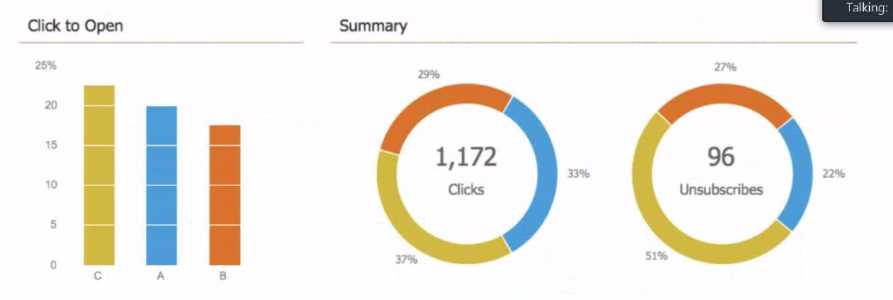
Based on Email Program A/B Test Dashboard, which variant is the winning version?
- A. Variant
- B. Variant A
- C. Variant C
Answer:
C
Explanation:
To determine the winning version of an Email Program A/B Test, the marketing manager needs to
compare the performance metrics of each variant based on the chosen winning criteria1
.
The winning criteria can be one of the following: Open Rate, Click to Open, Clicks, or Unsubscribes1
.
The Email Program A/B Test Dashboard shows the performance metrics of each variant in a graphical
and numerical format2
.
Based on the image uploaded by the user, the test type is Whole Email, which means that the entire
email content and design are different for each variant1
.
Assuming that the winning criteria is Click to Open, which measures the percentage of people who
opened the email and clicked on a link3, the winning version is Variant C, as it has the highest Click to
Open rate of 18.6%, compared to Variant A (14.8%) and Variant B (12.9%)2
.
Variant C also has the highest number of clicks (434) and the lowest number of unsubscribes (28)
among the three variants2
.
Therefore, based on the Email Program A/B Test Dashboard, Variant C is the winning
version. Reference: 1
:
Use “Whole Email” A/B Testing | Adobe Marketo Engage 2
:
Use the Email
Program Dashboard - A/B Test View | Adobe Marketo Engage 3
:
Email Marketing Metrics: How to
Measure and Report on Them
Question 6
A marketer needs to know the names and email addresses of the people who submitted their
information in the global demo request form on an Adobe Marketo Engage landing page.
How would a marketer find this information?
- A. Create a Landing Page Performance report
- B. Create a Web Activity report with the Filled Out Form filter
- C. Create a Smart List using the Filled Out Form filter with the Web Page constraint
Answer:
C
Explanation:
A Smart List is a dynamic list of people who meet certain criteria that you define1
.
You can use Smart
Lists to segment your audience, target your campaigns, and analyze your results2
.
A filter is a condition that a person must meet to qualify for a Smart List3
.
You can use multiple filters
and combine them with logic operators (AND, OR, NOT) to create complex criteria4
.
The Filled Out Form filter allows you to find people who have submitted a specific form on any web
page or landing page. You can use constraints to narrow down the filter by web page, querystring,
date of activity, etc.
The Web Page constraint lets you specify the URL of the web page or landing page where the form
was filled out. You can use operators such as contains, starts with, ends with, etc. to match the URL
pattern.
Therefore, to find the names and email addresses of the people who submitted their information in
the global demo request form on an Adobe Marketo Engage landing page, you need to create a
Smart List using the Filled Out Form filter with the Web Page constraint. The steps are as follows:
Go to the Marketing Activities area and select the program that contains the global demo request
form.
Click the New drop-down and select New Smart List.
Name your Smart List and click Create.
In the Smart List tab, drag the Filled Out Form filter from the right panel to the canvas.
Select the global demo request form from the drop-down menu.
Click Add Constraint and select Web Page.
Enter the URL of the Adobe Marketo Engage landing page where the form is located, or use an
operator to match the URL pattern.
Click Save Smart List.
In the Lead tab, you can see the names and email addresses of the people who match the criteria.
Reference: 1
:
Smart Lists | Adobe Marketo Engage 2
:
Create a Smart List | Adobe Marketo
Engage 3
:
Filters | Adobe Marketo Engage 4
:
Use Filter Logic | Adobe Marketo Engage
: [Filled Out
Form | Adobe Marketo Engage] : [Filter Constraints | Adobe Marketo Engage] : [Operators | Adobe
Marketo Engage] : [Landing Page with a Form | Adobe Marketo Engage]
Question 7
How would a marketer find the number of people created in the Database in the last six months,
grouped by industry?
- A. Create a Program Performance report, filtered by Industry and Person was Created set to "in past 6 months".
- B. Create a Smart List, filtered by Industry with the constraint of Date of Activity set to "in past 6 months".
- C. Create a People Performance report, with Person Created At set to "Last 6 Months" and Group People By set to "Industry".
Answer:
C
Explanation:
A People Performance report is a report that measures database growth over time. It shows how
many people were added, and when.
It also allows grouping the results by any person or company
attribute, or by segmentation1
.
To create a People Performance report, follow these steps1
:
Go to the Analytics section and click New Report.
Name your report and select the People Performance report type.
Set the time frame of your report to Last 6 Months and click the Report tab.
In the Report Settings panel, select Industry as the Group People By option.
Click Save.
To view the results, click the Report tab.
You will see the number of people created in the Database in
the last six months, grouped by industry. Reference: 1
:
People Performance Report | Adobe Marketo
Engage
Question 8
How would a marketer create a Static List in Adobe Marketo Engage?
- A. Use Add to Engagement List in an Engagement Program.
- B. Use the Add to List flow step in a Smart Campaign.
- C. Create a List in the Database or in the Program.
Answer:
C
Explanation:
A Static List is a group of people already in the user’s Database that remains unchanged unless the
user manually adds or removes people1
.
To create a Static List in Adobe Marketo Engage, the user needs to follow these steps1
:
Go to Database.
Click the New drop-down and select New List.
Choose a destination folder, give the new list a name, then click Create.
The user now has an empty list ready to be filled.
The user can add people to the list by importing a
file, dragging and dropping from another list, or using the Add to List flow step in a Smart
Campaign2
.
The user can also create a Static List within a Program by selecting the Program, clicking the New
drop-down, and choosing New Local Asset > List3. Reference: 1
:
Create a Static List | Adobe Marketo
Engage - Experience League 2
:
Add People to a Static List | Adobe Marketo Engage - Experience
League 3
:
Create a Program | Adobe Marketo Engage - Experience League
Question 9
Which type of Smart Campaign is listening for and automatically responding to person's actions?
- A. Trigger
- B. Batch
- C. Recurring
Answer:
A
Explanation:
Smart Campaigns are the engine of Adobe Marketo Engage that allow you to automate tasks and
actions based on different criteria and triggers.
There are three types of Smart Campaigns in Adobe Marketo Engage: Trigger, Batch, and Recurring.
A Trigger Smart Campaign is a type of Smart Campaign that is listening for and automatically
responding to a person’s actions. For example, you can create a Trigger Smart Campaign that sends
an email to a person who fills out a form, or adds a person to a list when they click a link, or updates
a person’s score when they visit a web page. A Trigger Smart Campaign has one or more triggers in
its Smart List that define the actions that will activate the campaign. A Trigger Smart Campaign runs
in real time and executes the flow steps immediately for each person who qualifies.
A Batch Smart Campaign is a type of Smart Campaign that runs once or on a specific date and time
for a group of people who meet certain criteria. For example, you can create a Batch Smart Campaign
that sends a newsletter to a segment of people, or cleans up your database by deleting inactive
people, or changes the status of people who attended a webinar. A Batch Smart Campaign has one or
more filters in its Smart List that define the criteria that people must match to qualify for the
campaign. A Batch Smart Campaign runs at the scheduled time and executes the flow steps for all
the qualified people at once.
A Recurring Smart Campaign is a type of Smart Campaign that runs on a regular basis for a group of
people who meet certain criteria. For example, you can create a Recurring Smart Campaign that
sends a birthday email to people on their birthday, or syncs people to Salesforce every day, or
updates the lead source of people who come from a specific channel. A Recurring Smart Campaign
has one or more filters in its Smart List that define the criteria that people must match to qualify for
the campaign. A Recurring Smart Campaign runs at the specified frequency and executes the flow
steps for all the qualified people each time it runs. Reference:
Understanding Smart Campaigns
Smart Campaigns 101: A Deep Dive into one of the most important Adobe Marketo Engage Features
Question 10
In the Results tab of a Smart Campaign, what is the exported row limitation?
- A. 40,000
- B. 30.000
- C. 20,000
Answer:
C
Explanation:
A Smart Campaign is a workflow that automates actions based on triggers and filters.
The Results tab of a Smart Campaign shows the list of people who qualified for the campaign and the
actions that were performed on them.
To export the results to Excel, click the export icon at the bottom of the Results tab.
The export is limited to 20,000 rows. If the results exceed this limit, only the first 20,000 rows will be
exported.
Therefore, the exported row limitation in the Results tab of a Smart Campaign is
20,000. Reference: :
Export Smart Campaign Results to Excel
:
Export 20,000+ Records from
Campaign Results
Question 11
In a webinar program, a marketing manager needs to mark people who filled out a registration form
with the Registered status.
Which flow step would the marketing manager use to set up the Smart Campaign?
- A. Add to Local List: "Webinar Registration List".
- B. Change Program Status to "Webinar > Registered.
- C. Change Data Value for field Webinar" to "Registered".
Answer:
B
Explanation:
A webinar program is a type of event program that integrates with a webinar provider such as ON24
or GoToWebinar1
.
A webinar program has a predefined channel called Webinar, which has different program statuses to
track the progress of people who register and attend the webinar2
.
To mark people who filled out a registration form with the Registered status, the marketing manager
needs to use the flow step Change Program Status to “Webinar > Registered” in the Smart
Campaign3
.
This flow step will update the program status of the people who qualify for the Smart Campaign, and
also push them to the webinar provider if the integration is enabled3
.
The other flow steps are not correct because:
Add to Local List: “Webinar Registration List” will only add the people to a local list within the
program, but will not change their program status or register them to the webinar provider.
Change Data Value for field Webinar to “Registered” will only change the value of a custom field
called Webinar, but will not affect the program status or the webinar provider. Reference: 1
:
Create
an Event with the Marketo ON24 Adapter 2
:
Understanding Webinar Program Statuses 3
:
Change
Program Status
: [Add to List] : [Change Data Value]
Question 12
Which is considered a best practice when building a Smart List?
- A. Including the @ symbol when using the Email Address filter
- B. Using both the "contains" and is' operator in the same filter
- C. Using multiple nested Smart Lists
Answer:
A
Explanation:
A Smart List is a powerful query tool that allows you to find people in your database who meet
certain criteria based on their attributes and activities1
.
To build a Smart List, you need to drag and drop filters from the right panel to the canvas and
configure them with the appropriate operators and values1
.
There are some best practices to follow when building a Smart List to optimize performance and
accuracy2
.
One of them is to include the @ symbol before the domain name when using the Email
Address filter2
.
This makes the filter use a faster query that can leverage more effective search algorithms2
.
For
example, instead of using Email Address contains gmail.com, you should use Email Address is
@gmail.com2
.
Using the @ symbol also helps to avoid false positives, such as matching email addresses that have
the domain name as part of the local part2
.
For example, Email Address contains gmail.com would
match [email protected] as well as [email protected], but Email Address is @gmail.com would only
match the former2
.
Therefore, including the @ symbol when using the Email Address filter is considered a best practice
when building a Smart List.
Reference:
:
Creating a Smart List 2
:
Best Practices for Smart Lists
Question 13
A marketing manager wants to import another list into an approved Email Program. Why does the
second list import fail?
- A. The program has already been approved.
- B. Adobe Marketo Engage will not accept the .csv file type.
- C. Too many people have already been added to the Email Program.
Answer:
A
Explanation:
Adobe Marketo Engage allows users to create and manage email campaigns using Email Programs,
which are a type of program that contains an email asset and a smart campaign to send it1
.
To add people to an Email Program, users can import a list of leads from a .csv file or use a smart list
to define the target audience2
.
However, once an Email Program is approved, it cannot be edited or changed, including adding or
removing people from the list3
.
This is to ensure that the email content and recipients are consistent
and compliant with the email regulations4
.
Therefore, if a marketing manager tries to import another list into an approved Email Program, the
second list import will fail because the program has already been approved and cannot be modified3
.
To avoid this issue, the marketing manager should either import all the lists before approving the
Email Program, or create a new Email Program for the second list and send it separately5
.
Reference:
:
Email Programs - Marketo Docs - Product Documentation 2
:
Add People to an Email Program -
Marketo Docs - Product Documentation 3
:
Edit an Approved Email Program - Marketo Docs - Product
Documentation 4
:
What is Adobe Marketo Engage? 5
:
Marketo Engage - Marketing Automation
Benefits | Adobe
Question 14
A marketing manager builds a Smart Campaign with the following Smart List: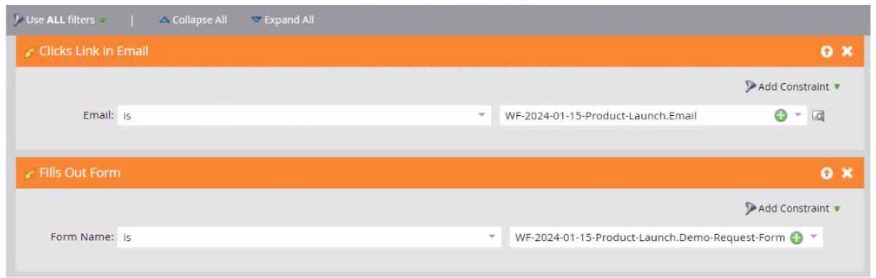
What would a person need to do in order to qualify for this Smart Campaign?
- A. Click a link in the email OR fill out the form
- B. Click a link in the email THEN fill out the form
- C. Click a link in the email AND fill out the form
Answer:
C
Explanation:
The Smart Campaign you provided has two filters applied:
Clicks Link in Email: This filter ensures the lead clicked a link in a specific email (based on the "Email"
field value).
Fills Out Form: This filter ensures the lead filled out a specific form (based on the "Form Name" field
value).
Since both filters are connected with AND, a lead needs to meet both criteria to qualify for the Smart
Campaign. They need to click the link in the email and fill out the form.
Question 15
A marketing manager finds a person in the Database whose Marketing Qualified date has changed.
The manager needs to identify the source and reason for the value change.
Where can this information be accessed?
- A. In the person's activity log
- B. In a report
- C. In a Smart List
Answer:
A
Explanation:
The person’s activity log is the ultimate source of truth for all the information that happens over time
for a person in Marketo Engage1
.
To locate the activity log for a person, go to the Database, select All People, click the People tab,
select a person Id number, and click Activity Log1
.
The activity log shows all the activities that have occurred for the person, such as web page visits,
email clicks, form fills, program status changes, etc1
.
To find the source and reason for the Marketing Qualified date change, filter the activity log by the
activity type “Change Data Value” and the attribute "Marketing Qualified Date"2
.
The filtered activity log will show the date and time of the change, the source of the change (such as
a campaign, a sync, or a manual update), and the reason for the change (such as a trigger, a filter, or
a flow step)2. Reference: 1
:
Locate the Activity Log for a Person | Adobe Marketo Engage 2
:
Marketo
Lead Activity Logs: What They Are & How To Update - Iron Horse